AI Auto Reframe

Turn landscape video into vertical content that stays on target.

Convert a complete 16:9 video into 9:16. Bytecap detects speakers, people, and scene changes, keeps the right subject centered, and gives you every generated scene to edit.

Full video preservedEditable scene framingOptional AI captions
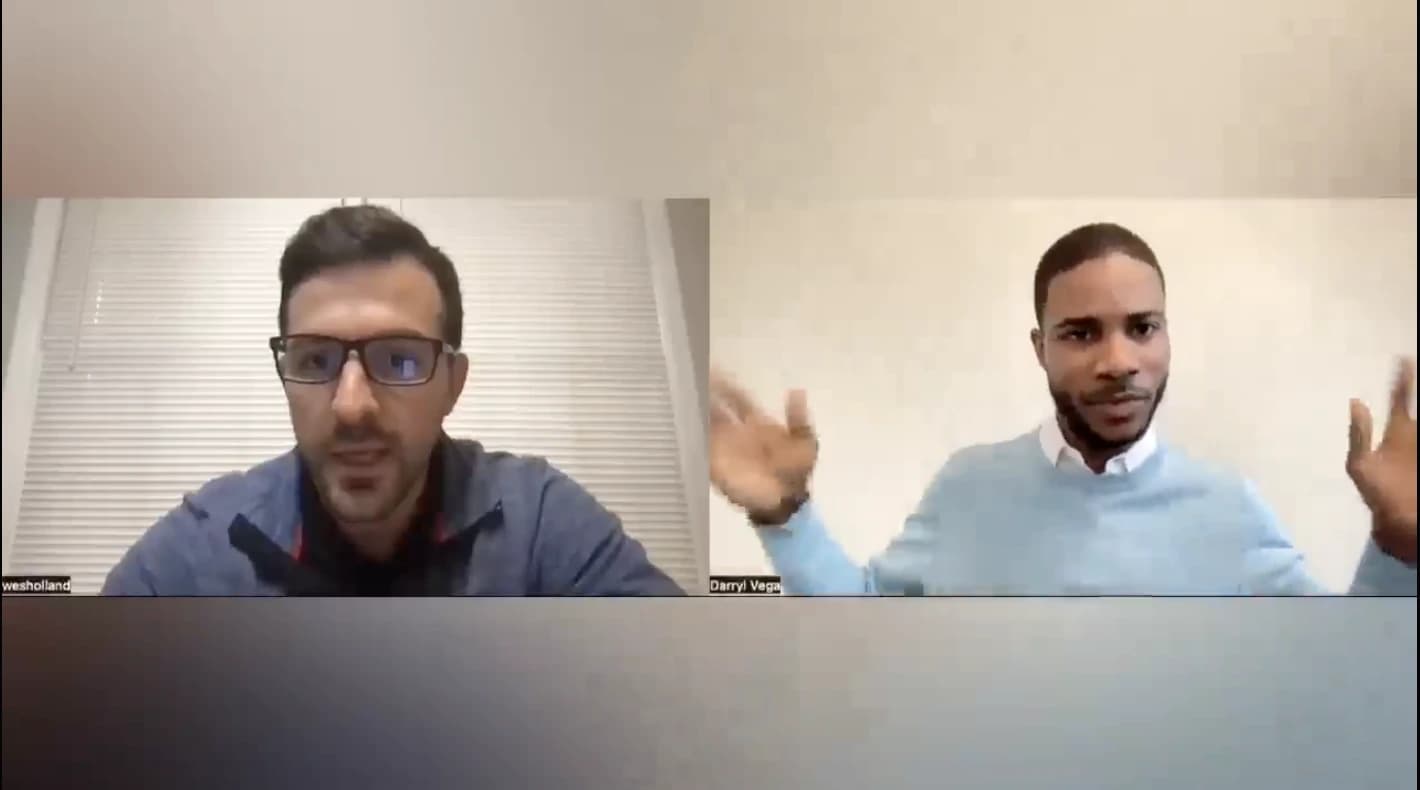
Landscape interview with two speakers detected for reframing
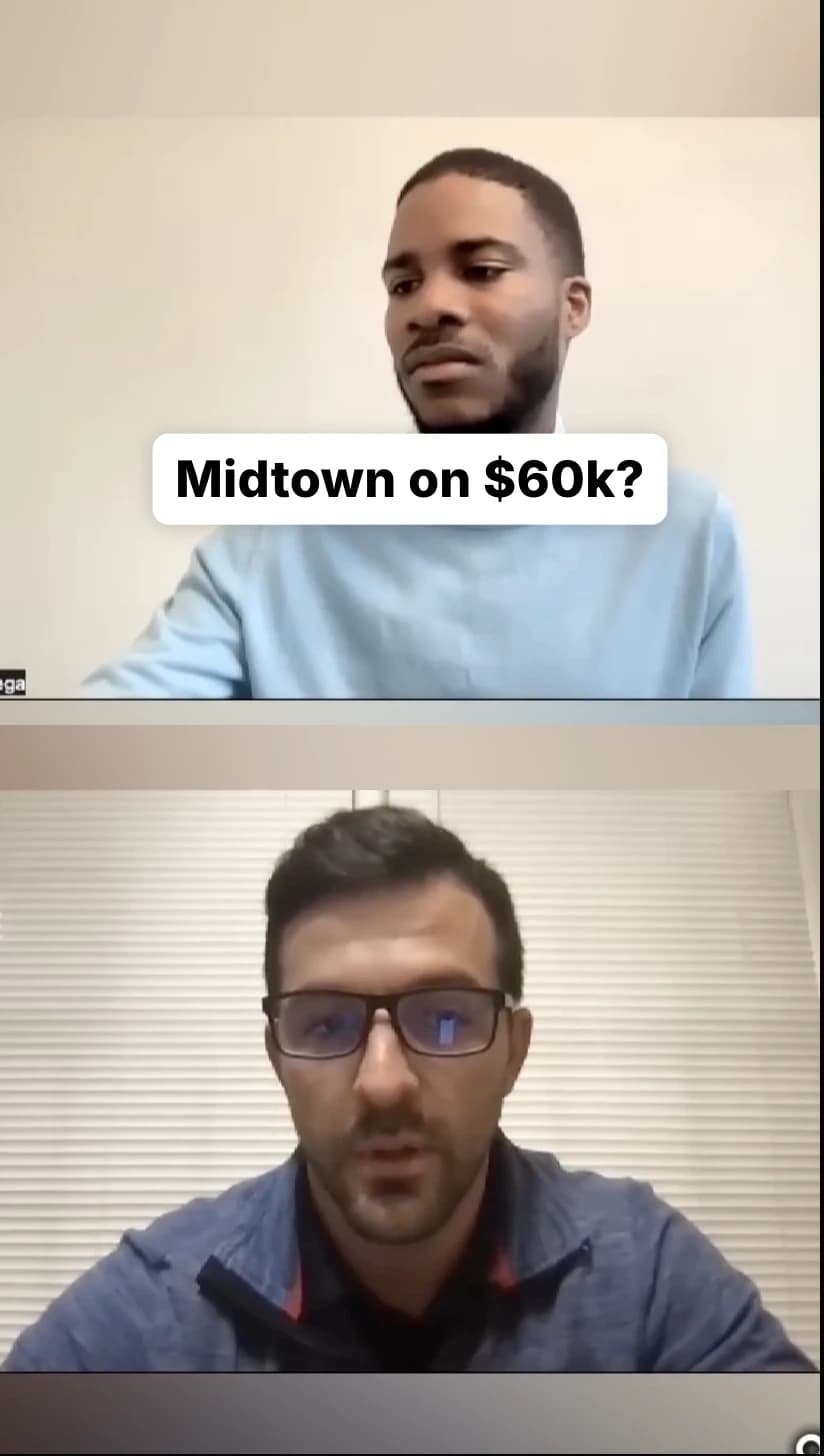
Vertical 9:16 result with both speakers kept in frame
1 video
One complete project
9:16
Vertical output canvas
3 signals
Faces, people, shots
100%
Scenes stay editable

One workflow, changing footage

Built for the videos you already make.

Auto Reframe understands more than a talking head. Shot boundaries and person detection help the framing respond as your footage changes.

Podcasts

Keep the active speaker centered as the conversation moves.

Interviews

Turn a wide two-person setup into a clear mobile-first edit.

Tutorials

Follow the presenter while preserving the full explanation.

Product demos

Track the person or product that matters in each shot.

Webinars

Convert long presentations without chopping up the session.

Vlogs

Adapt changing locations and camera movement scene by scene.

Real footage, intelligently reframed

Speakers stay visible from wide source to vertical result.

Bytecap detects the people in your original footage and arranges the important subjects for a mobile-first 9:16 canvas.

Landscape interview with two speakers detected for reframing
Vertical 9:16 result with both speakers kept in frame

Full length conversion

Change the frame, not the story.

Your selected duration stays intact. Bytecap creates one normal editor project instead of slicing the upload into a clip series.

  • No viral-moment filtering
  • No series or duplicate clips
  • Optional captions

Intelligent focus

Keep the important subject in frame.

Face and person detections identify where subjects are over time, while shot changes keep each framing decision stable and relevant.

  • Face and person detection
  • Shot-aware scenes
  • Smooth framing

Editable scenes

Take control after AI does the setup.

Every generated scene opens in the Bytecap editor, so you can refine the crop, choose a layout, add captions, and export.

  • Editable scene timeline
  • Multi-subject layouts
  • Portrait-first output

From wide to vertical

Reframe a complete video in three steps.

No keyframes to draw and no crop to babysit through every camera move.

01

Upload 16:9

Choose a landscape file or bring in a supported video link.

02

Let AI map the video

Bytecap prepares the full video and detects subjects and shots.

03

Review and export

Open the project, refine any scene, add captions, and export vertically.

AI starts it. You finish it.

Every auto-generated scene remains yours to edit.

Open Scenes in the Bytecap editor to adjust framing, select a different subject, change the layout, or split the timeline exactly where you want.

Try Auto Reframe
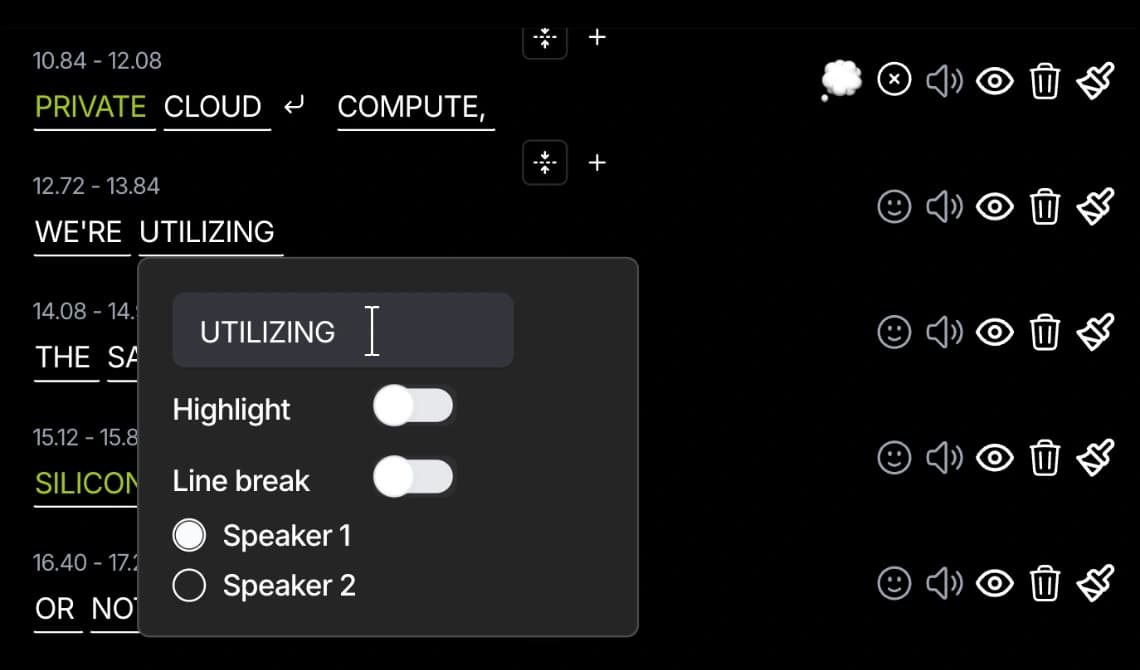
Bytecap video editor where generated scenes can be refined

Questions, answered

Everything to know before you reframe.

Auto Reframe is a standalone full-video workflow, separate from AI Clipping.

What does Auto Reframe do?+

Auto Reframe converts a complete landscape video into a 9:16 project. It detects faces, people, and shot changes, then builds editable scenes that keep the important subject inside the vertical frame.

Does Auto Reframe cut my video into clips?+

No. Standalone Auto Reframe preserves the full selected duration. If you want Bytecap to find and cut short moments, use Magic Clips instead.

Can I change the framing after processing?+

Yes. Every generated scene opens in the Bytecap editor, where you can adjust the crop, choose the subject, change layouts, and split or refine scenes before export.

Can Auto Reframe add captions?+

Yes. AI captions are optional. You can also enable multi-speaker captions, choose a caption style, and translate captions during setup.

What video shape should I upload?+

Upload a landscape 16:9 video. Portrait and square videos are rejected because they are already formatted for narrow social layouts and do not need this conversion.

How are credits calculated?+

Standalone Auto Reframe uses two credits per selected minute because it performs video processing plus subject and scene detection. AI Clipping keeps its existing credit calculation.

Your landscape video already has the story. Give it the frame mobile viewers need.

Upload a 16:9 video, let Bytecap build the tracked scenes, then make every creative decision yours in the editor.
Start auto reframing