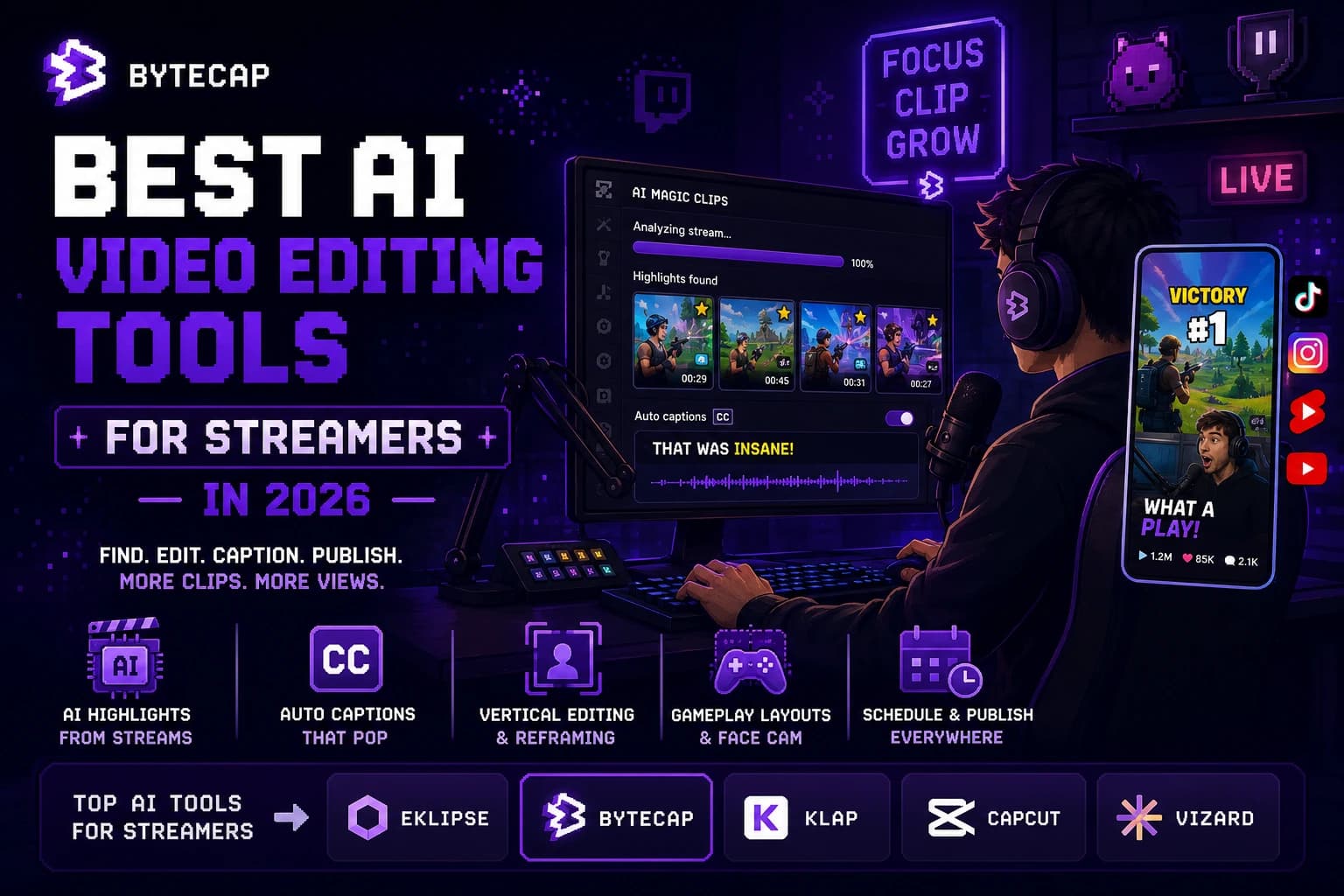
Best AI Video Editing Tools for Streamers in 2026
A practical guide to AI video editing tools for streamers in 2026. Compare AI highlight generation, vertical editing, captions, gameplay layouts, and publishing workflows for Twitch, YouTube, Kick, and more.
By Ali Mansour
Quick answer
The best AI video editing tool for a streamer depends on whether the difficult part is finding a highlight, turning it into a good vertical video, or getting it posted consistently. Eklipse is worth testing for AI-generated gaming and stream highlights. Bytecap is a strong fit when a selected stream moment needs to become a captioned, edited, vertical post in a broader creation and publishing workflow. Klap is worth testing for livestream replays with strong spoken moments. CapCut is a practical manual editor for the final creative polish.
No stream clipper should be trusted blindly. Gameplay has visual context, scoreboards, overlays, rapid scene changes, and moments with little or no dialogue. The final choice needs to be tested on your own VODs.
What streamers actually need from an AI video tool
The right workflow does more than cut a 30-second segment from a VOD. It needs to answer these questions well:
- Can it locate moments that make sense without an hour of stream context?
- Does vertical framing preserve the gameplay, face cam, chat, and on-screen information that matter?
- Can you add readable captions without covering the important part of the screen?
- Is it quick to create a platform-ready version for TikTok, Reels, and YouTube Shorts?
- Can you review and package several clips after each stream without creating a second full-time editing job?
A speech-led podcast clipper may be useful for a Just Chatting stream and poor at identifying a game-winning play. Conversely, a highlight detector may surface the action but still need a creator to add context, a better crop, or a hook. That is why stream footage is a demanding test case for AI editing.
How this guide was updated
Updated July 10, 2026. We reviewed publicly documented workflows and current vendor materials. We do not assign a universal quality score or claim that one platform catches every highlight. Evaluate a tool with an ordinary VOD from your own channel, not a polished promotional example.
At a glance
| Tool | Best for | Why it is worth testing | Watch for |
|---|---|---|---|
| Eklipse | Gaming and stream highlights | Purpose-built AI highlights and streamer-focused clip workflows | Test whether it catches the events that matter in your game and format |
| Bytecap | Taking a selected stream moment to finished social content | Magic Clips, captions, reframing, visual edits, and publishing workflow in one workspace | Review the AI selection on visual-first footage and refine the crop/layout |
| Klap | Talking-head, commentary, podcast, and livestream replay clips | Supports video links and livestream sources with clip generation, captions, speaker tracking, and a transcript editor | Dialogue-driven selection may need extra review for gameplay action |
| CapCut | Manual short-form editing and final polish | Timeline control, templates, effects, and social-first editing | Does not replace systematic VOD scanning by itself |
| Vizard | Team repurposing and social distribution | AI clips, editor, captions, collaboration, and publishing options | Confirm the minutes, review workflow, and layout tools match your channel |
Best for dedicated stream highlights: Eklipse
Eklipse is the clearest tool to test when your content is centered on live gaming and stream highlights. Its own materials describe AI-powered highlight generation for streams and support for stream-focused workflows. That specialization is valuable because visual events, not spoken sentences, often create the best clips.
Choose a streamer-focused highlight tool when you want to reduce the time spent scrubbing through VODs after every broadcast. It can be especially useful when you have a repeatable game, recurring stream schedule, and enough footage to make manual review unsustainable.
Still inspect the results. The right highlight is not always the loudest moment. A tool may miss the build-up to an important play, choose an inside joke with no context, or crop away a key HUD element. Keep a short review step before publishing.
Best for a complete clips-to-post workflow: Bytecap
Bytecap is a strong fit when the stream highlight needs more work than a trim. Its Magic Clips workflow can turn long recordings into short-form candidates, and the same workspace includes word-level animated captions, vertical reframing and face tracking, B-roll and sound effects, editing controls, and publishing or scheduling tools.
For streamers, that means you can focus the review on the important creative decisions:
- Is this moment understandable to a new viewer?
- Does the layout show the gameplay and face cam in the right proportions?
- Are captions helping viewers follow commentary without covering the action?
- Does the opening frame make a viewer want to stay?
- Is the final post ready for the platform where your audience is most active?
Bytecap is most compelling when streams are one input to a broader creator operation: YouTube videos, interviews, tutorials, and marketing footage can use the same short-form workflow. For purely visual gaming highlights, test the candidate selection carefully; a human should approve every moment before it represents your channel.
Best for commentary-led streams: Klap
Klap is worth testing for stream replays where conversation, reactions, interviews, or commentary are the core of the clip. Its public product documentation describes importing or linking long videos, including Twitch sources, then generating vertical captioned clips with speaker tracking and a transcript editor.
That is useful for streamers whose strongest posts are a quote, a reaction, an explanation, or a funny exchange. It is less certain for a silent clutch, a rapid montage, or a sequence where the visual action is the whole story. Use a mixed VOD with both types of moments in your trial and check what it overlooks.
Best for manual creative control: CapCut
CapCut is a good companion or primary editor when you want to shape each short by hand. It is particularly useful for adding a cold open, creating a custom gameplay-plus-facecam layout, using a recurring template, timing a sound effect, or making a clip feel native to a platform's editing style.
Manual tools are not a failure of automation. They are the right answer when the creative treatment is the differentiator. The tradeoff is that CapCut does not solve the library-management problem: someone still has to find the right moments from long streams and decide which ones deserve to become posts.
Best for a team or shared content pipeline: Vizard
Vizard documents a workflow that combines AI clips, a browser video editor, subtitles, brand tools, collaboration, and social publishing. It is reasonable to test when a streamer works with an editor, a community manager, or a small content team and needs shared project access alongside repurposing tools.
For a team, the tool matters less than the handoff. Agree on who chooses moments, who makes the edits, who writes the final captions, and who approves the posts. The best product is the one that keeps those decisions visible instead of scattering files and feedback across separate folders and chats.
The streamer footage test
Use this test before you choose a monthly or annual plan:
- Pick three VOD segments: one gameplay-heavy, one commentary-heavy, and one moment with face cam plus important on-screen UI.
- Generate clips in your shortlisted tools with default settings.
- Mark whether each clip preserves the context needed for a new viewer to understand it.
- Check every vertical crop on a phone. Does it keep the important action, face cam, captions, and HUD readable?
- Time how long it takes to turn three good candidates into posts you would publish this week.
- Repeat with a quiet or average stream, not only an unusually exciting one.
Track approved clips per hour of review. That number tells you far more than the number of clips an AI generated.
A simple post-stream workflow
- Save or import the VOD as soon as the stream ends.
- Generate a first pass of candidates, then filter for moments that make sense with no prior context.
- Build a vertical layout that protects game action, face cam, and captions.
- Add one short on-screen hook only when it clarifies the moment; do not write a misleading promise just to create a click.
- Review the full clip with audio off and then with audio on.
- Prepare platform-specific captions and schedule or export the approved posts.
- Review which clips earned views, watch time, comments, and follows, then feed those lessons into the next stream's clip review.
This workflow keeps AI in the first-draft role where it is most useful, while the streamer keeps control of context and taste.
Frequently Asked Questions
What is the best AI clip maker for Twitch streamers?
Eklipse is worth testing for dedicated gaming and stream highlights. Bytecap is a strong fit when you also need captioning, vertical editing, visual polish, and publishing workflow. Klap can be useful for commentary-heavy Twitch replays. Test all finalists on an actual VOD from your channel.
Can AI find gameplay highlights automatically?
AI can reduce the time spent finding candidates, but it can miss context that makes a gameplay moment satisfying. Review the clip's build-up, crop, audio, and on-screen information before publishing. The most reliable workflow combines automated discovery with human approval.
How do I turn a Twitch stream into TikToks and YouTube Shorts?
Start with a VOD or supported source link, generate candidate clips, choose moments that work without the full stream, create a 9:16 layout, add readable captions only where they help, then review each output on a phone before publishing to TikTok, Reels, or Shorts.
Should I use captions on gaming clips?
Use captions when spoken commentary, reactions, or instructions are part of the appeal. Keep them out of the way of the action and HUD. For a clip that is mostly visual, a brief contextual hook or no captions may be clearer than filling the screen with text.
Sources checked
- Bytecap Magic Clips and Bytecap for streamers
- Eklipse pricing and feature overview and Eklipse help center
- Klap AI Clip Maker
- CapCut video editing software
- Vizard Video Editor
Bottom line
For gaming-first stream highlights, start by testing a purpose-built stream workflow such as Eklipse. For taking long recordings through captions, framing, editing, and a publishing flow, Bytecap is a strong option. For talking-led stream clips, Klap is worth a trial. Let your own VODs decide: the best tool is the one that produces the highest number of context-rich, on-brand clips per hour of review.